Changelog

New features, improvements, and fixes. Follow along as ClipCabinet turns screen recordings into clips your AI tools can read.

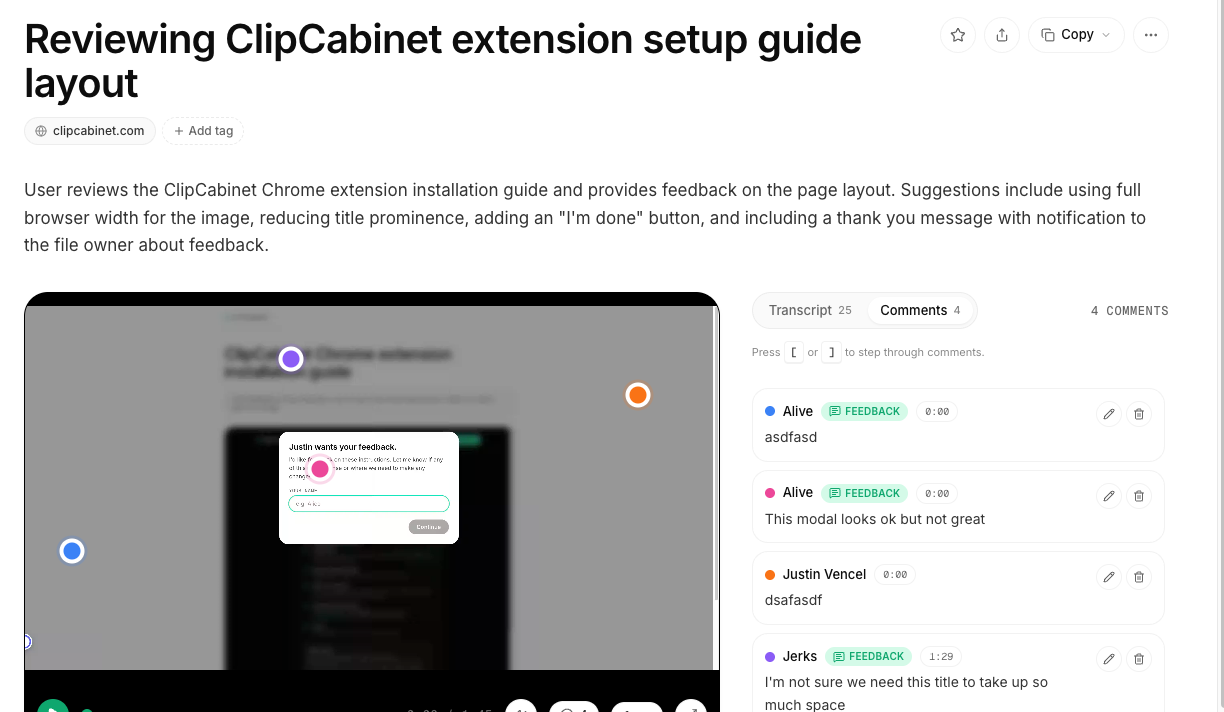
Comment the moment a clip can play

Clips have been watchable before processing finishes for a while: the player shows up as soon as the video is ready, and the transcript and summary fill in behind it. Commenting, though, still waited for the whole pipeline. If you spotted something in the first ten seconds, you had to hold that thought.

Now the comment surface comes alive with the player. The moment a clip can play, you can click the frame and pin a comment to that exact spot and moment, and so can anyone you've shared it with. Share links work the same way: viewers can watch and leave feedback while the transcript and summary are still being written.

Nothing to set up. Open a clip that's still processing and click anywhere on the frame.
Permalink

Tag or delete many clips at once

A library that grows one clip at a time still gets cleaned up in batches: the six takes of the same bug, the screenshots from a finished project, the recordings that all belong under one tag. Doing that clip by clip was the slow part.

You can now select any set of clips and act on them together. Hover a row and tick its checkbox, or use the checkbox above the list to select the whole page. A bar appears with the selection count and two actions: Tag applies one tag to everything selected, and Delete removes the lot after a single confirmation that states the count. Press Escape to clear the selection and the list goes back to normal.

Available now on every plan, in your library at the dashboard.

Permalink

ClipCabinet is now live in the Chrome Web Store

Installing the extension is now one click. The ClipCabinet recorder is live on the Chrome Web Store, so you can add it straight from the listing with no developer-mode setup. From there, record any tab, window, or screen.

Permalink

Finally, dark mode

We now have a dark theme across the entire product, library, clip pages, and settings included. It follows your system setting by default, or flip back and forth with our theme toggle to match your mood.

We personally love using dark mode at night.

Permalink

Updated AI comment metadata

While pinned comments make perfect sense to humans looking at a screen, it's not always obvious to AI.

Now every pinned comment includes detailed information allowing your AI to not only read your comments but know exactly where in the recording or screenshot they reference. The Markdown export data provided for your favorite agent has everything it needs to one-shot your next update.

Permalink

Capture full-length web screenshots

Most web pages just don't fit on a single screen including long articles, landing pages, and web dashboards. You can now capture the full page as a single image. ClipCabinet auto-scrolls top to bottom and stitches it together.

We've overhauled the comment section to allow for very long screen shots allowing them to ride along in a rail that stays put as you scroll. Don't worry, we still allow pixel-perfect pins for your comments even on really long screenshots.

In the extension, choose Capture the Full Page.

Permalink

Transcripts in your language, recording on your cue

Transcription is no longer English-only and now supports our most requested languages. We now support Spanish, French, German, Portuguese, Hindi, Russian, Japanese, Italian, and Dutch.

You can also now choose when your recording starts. You can now optionally choose to start recording on click, we provide you a button that allows you the necessary time to prepare yourself for your recording. But don't worry, you can still have recording start immediately if you choose.

Permalink

Getting started with the extension is even easier

Connecting a client used to mean minting a token and pasting it in by hand. Now ClipCabinet does it for you.

If you run more than one account, the extension update allows you to keep several accounts connected and quickly switch between them for each recording. This is a great way to distinguish between different projects or different organizations.

Permalink

Request for feedback is in beta

ClipCabinet
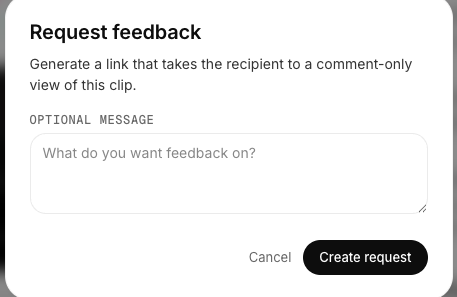
The Request feedback dialog for generating a comment-only review link.

Getting people to comment on your clips can sometimes be a struggle. You can now send links to other people requesting their feedback. They see your instructions and can leave comments pinned right on the video or screenshot. They just mark it down when they're ready and you'll receive an email.

Each request shows whether it's open or closed and how many comments came in. All feedback is badged so you can quickly sort it from your own comments.

To get started, open a clip and click Request feedback.

Permalink

Quick controls for clip comments

Reviewing a clip with a bunch of comments can be a pain. Now you can step through them in quick order. Just press ] for the next comment and [ for the previous comment. The video pauses on each one and jumps to exactly the spot it was pinned to. It turns a pile of feedback into a few simple key strokes.

Permalink

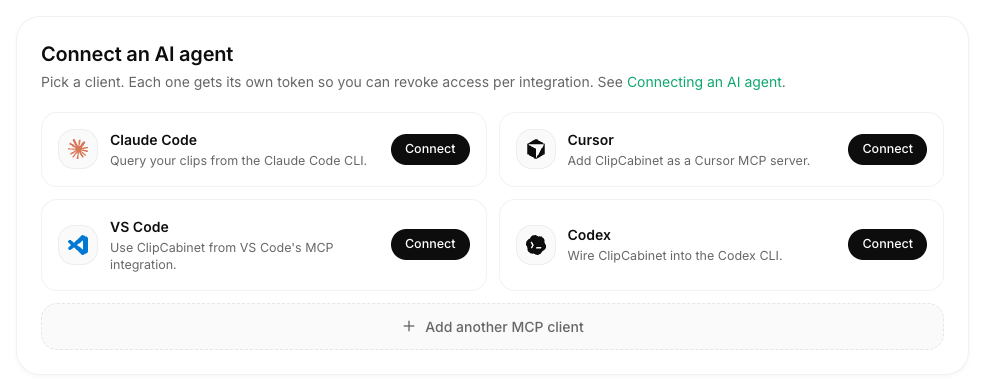
We've simplified your MCP setup

ClipCabinet
The connect-an-AI-agent panel with per-client cards for Claude Code, Cursor, VS Code, and Codex.

Setting up an AI client is now just a couple of clicks away, and still the most powerful way to use ClipCabinet. The MCP settings give you quick setup instructions for Claude Code, Cursor, VS Code, and Codex. You can still add any of your favorite agents with the raw MCP command. You can find them under Settings → MCP.

Permalink

Screenshots, not just recordings

Sometimes you just want to grab an error, a design, or a page, with no need to roll a whole recording. You can now capture a screenshot as a simple clip: snap the visible tab, or drag to select a region, then it gets the same AI treatment as a video. ClipCabinet describes what's on screen, pulls out links, errors, code, and file paths, writes a summary, and makes it searchable. Comment on it just like a video, pinned to a pixel perfect spot. From the extension, just choose Screenshot.

Permalink

URLs are now markdown friendly

ClipCabinet
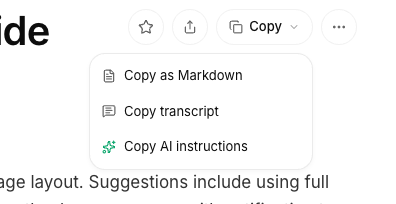
A clip's Copy menu showing Copy as Markdown, Copy transcript, and Copy AI instructions.

Add .md to any clip's URL, or to a public share link, and you get the whole thing as clean raw Markdown. We include the transcript, frame captions, summary. Drop it into Claude, Cursor, or ChatGPT for instant context, no MCP connection required. Public pages even advertise that Markdown version, and an llms.txt tells agents how to find it, so a model handed a ClipCabinet link can pull the full clip on its own.

Permalink

Say hello to ClipCabinet

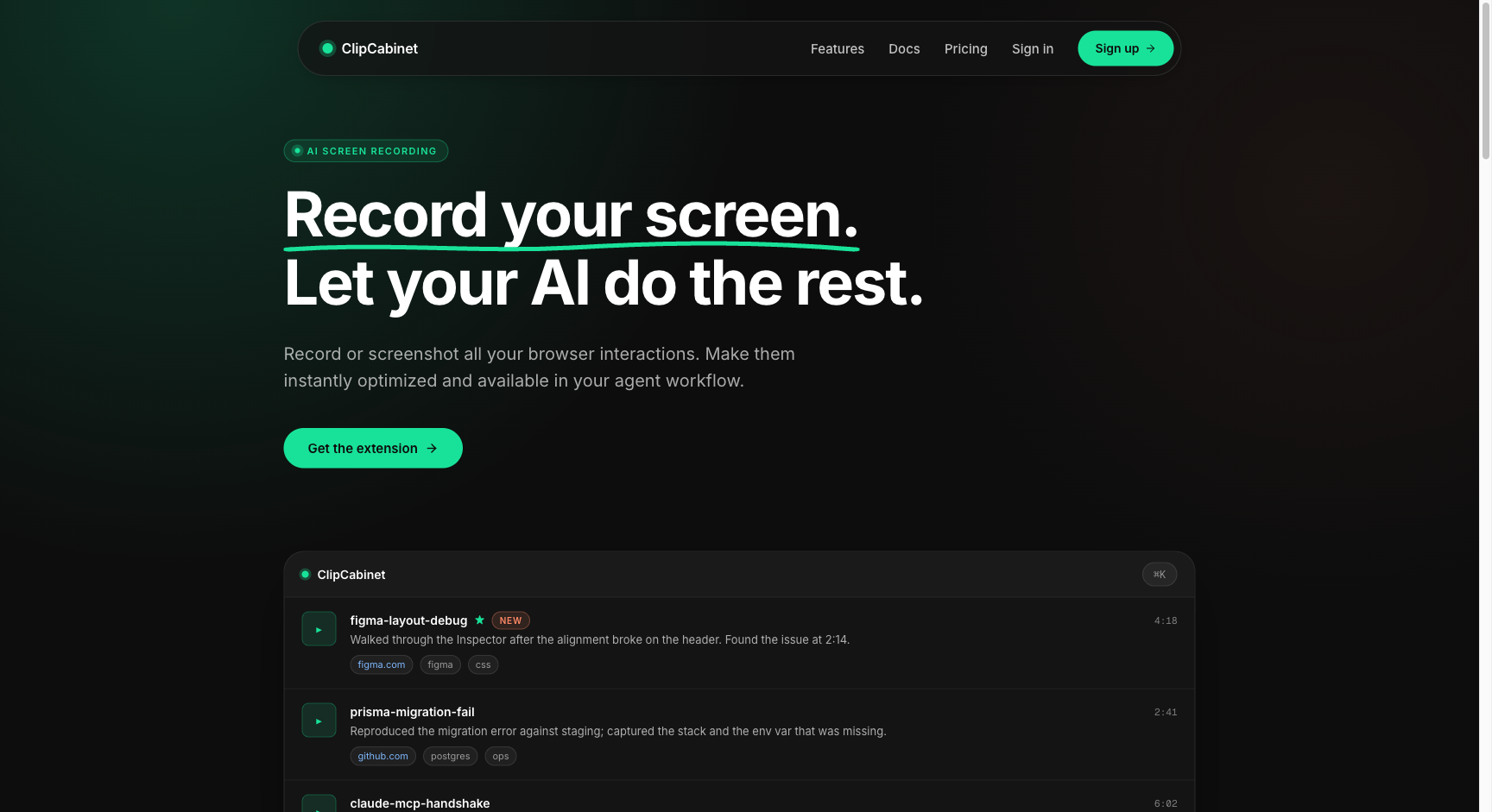
The ClipCabinet landing page: the headline "Record your screen. Let your AI do the rest." above a preview of the clip library.

The product has a new name, ClipCabinet, and a new home page to match. It's a cabinet for your clips: screen recordings that become searchable, shareable, and ready for your AI tools. Your clips and account carry over, only the name and address have changed.

Permalink

Better processing and edge case handling

Processing now self-heals if a clip stalls or fails then picks back up where it left off. This avoids having to start over or email the ClipCabinet team with angry comments. Each AI step is now time-bounded so one slow call can't jam the pipeline. If a clip truly can't be processed, we email you instead of leaving things spinning.

Permalink

Get into your first recording faster

You don't have to wait for processing to finish to hit play. The video shows up as soon as it's ready, and the rest fills in as the processing finishes. Your clip metadata fills in as the transcription finishes, the summary is written, the links are extracted. Independent steps now run in parallel, so everything lands sooner.

Permalink

Bigger better clip stats

While a clip processes, it now tells you what it's doing and roughly how long is left: extracting audio, picking key frames, transcribing and captioning, writing the summary, indexing for search, with an estimate like "about two minutes remaining." No more staring at a blank spinner wondering if anything's happening. Just open a processing clip and watch it move.

Permalink

Your clip player grew up

The clip player now has the full set of controls: play and pause, a clean high-contrast scrubber, a current-time readout, playback speed from 0.5× to 2×, volume and mute, and fullscreen. The keyboard helps too: space to play or pause, and the arrow keys to jump back and forward five seconds. These controls are on every clip, including the ones you share.

Permalink

Getting started

New accounts now get a short welcome screen that walks you to your first clip and install the extension. There's also an install page that drops you straight on the extension, easy to bookmark or send to a teammate.

Permalink

Webhooks for the win

A clip is often the start of something larger, a note to post in Slack, a ticket to open, a teammate to notify, a fix to be made. Accomplishing this used to mean polling ClipCabinet looking for clip changes.

Now you can receive a webhook message when something happens to one of your clips. Point it at services like Zapier, Make, or Slack, and receive instant updates anytime a recording finishes processing, when failures occur, or when someone leaves a comment. Each delivery is signed with HMAC-SHA256, so you can confirm it came from ClipCabinet. Webhook messages are retried automatically, and every one is recorded in a delivery log you can inspect and replay.

To get started head over to Settings → Webhooks: add an endpoint URL, choose the events to send, and copy the signing secret.

Webhooks are available now to any paid plan.

Permalink

Recordings you can trust

No one wants to spend a bunch of time on a recording just to have a dropped Wi-Fi signal or a closed tab cost you the whole recording.

Uploads are now more resilient. Recording uploads are chunked in small pieces as you go, and each piece retries on its own if you encounter connection issues. Brief hiccups no longer risk longer recordings not saving.

This runs automatically for each recording.

Permalink

Organizing your clip library

You can now quickly organize your library by adding colored tags or favorite any clip. Tags and favorites show in the left side navbar, just click a tag to see everything tagged with it. Favorite clips you need quick access to from the left nav.

ClipCabinet also automatically adds the source to every clip. Filters in your library allow you to show only the clips from individual sources like Figma, or GitHub. Quick filters also surface untitled clips, or other clips that need your attention.

Permalink

Record from anywhere with the browser extension

The ClipCabinet browser extension lets you record any tab, window, or your whole desktop without leaving your browser. When a recording starts, a compact control bar appears on the screen you're capturing, with a live timer, pause and resume, discard, and a finish button. You can drag it into any corner to keep it out of the shot. Clicks you make while recording show a brief highlight, so whoever watches this later knows exactly when you interact.

When you finish, the clip lands in your library and is transcribed, summarized, and made searchable.

Add the ClipCabinet extension to your browser, click its icon, and choose Record Clip.

Permalink

Share a clip, and collect feedback

ClipCabinet
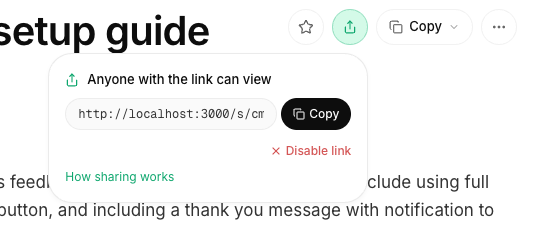
The share popover on a clip, with a public link ready to copy.

Sharing something usually involves a bit of hope. You hope the other person provides enough context for you to understand their feedback, how it applies to your situation, and how you should make changes based on it.

With ClipCabinet users can comment directly on any clip. Clicking anywhere on a video or screenshot attaches a comment to the exact spot. Comments appear as markers on the clip and in a list, so every piece of feedback stays attached to precisely what it's about.

More importantly, when your AI reads a clip, it knows exactly where each comment belongs in each clip, giving it critical context it otherwise would never have.

Share any clip as a public link. Click Share and send the link to anyone…no account required.

Permalink

A searchable library, and a home for every clip

ClipCabinet
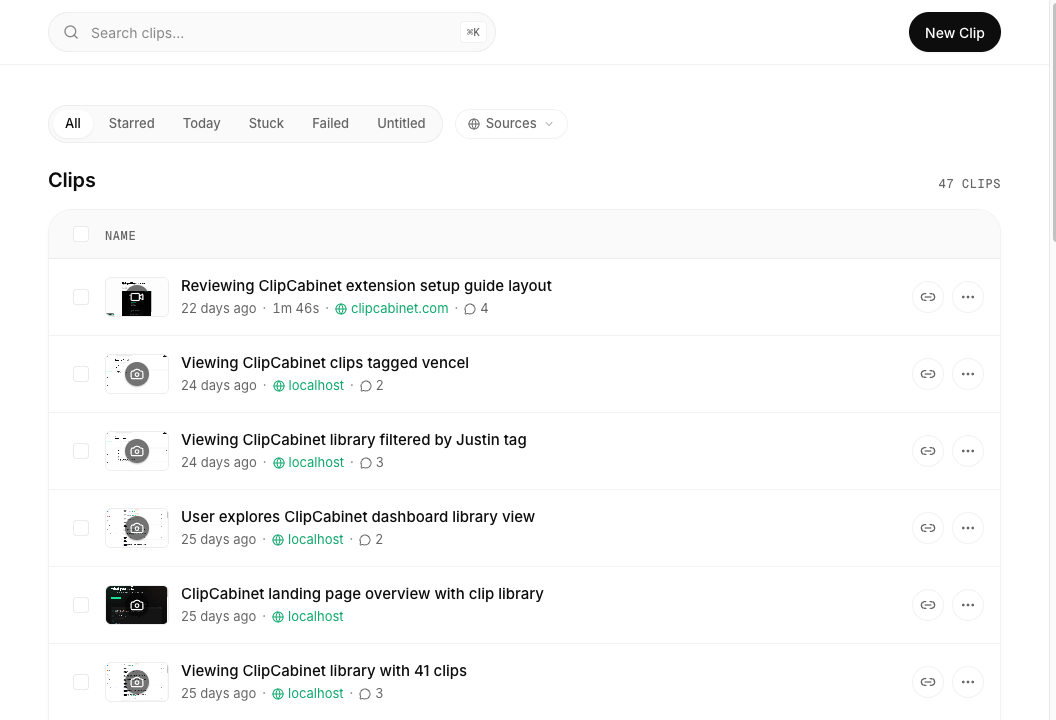
The ClipCabinet library with the search bar, source filter, and a list of clips.

Once you have more than a handful of recordings, finding the right one becomes the hard part, and a wall of thumbnails doesn't help when what you remember is something that was said, not how it looked.

Your clips now live in a library you can search by content. Press ⌘K from anywhere to search across titles, summaries, and the full transcript of every clip; when the match is inside what someone said, the matching line appears right under the result so you can see why it surfaced. The library lists each clip with its title, length, source, tags, and comment count.

Opening a clip takes you to its detail page: the video alongside its transcript and summary, the comments left on it, and the artifacts ClipCabinet pulled out, links, errors, code, file paths, listed beside the player. From there you can copy the clip as Markdown, as a plain transcript, or as a block of AI-ready instructions.

Open a clip from the library, or jump straight to one with ⌘K.

Permalink

Connect your clips to AI agents over MCP

ClipCabinet
The connect-an-AI-agent panel with per-client cards for Claude Code, Cursor, VS Code, and Codex.

Your recordings already carry a transcript, summary, and visual description, but that context is only useful to your AI tools if they can actually reach it. Now they can.

ClipCabinet runs an MCP server (Model Context Protocol), an open protocol for connecting AI tools to outside data. You mint an API token, connect your agent or client, and it can list, search, and read any of your clips, pulling the video or screenshot along with its transcript, summary, and metadata. The server runs over a plain HTTP transport, so it works with Claude Code and similar clients without any local proxy setup.

As a result, you can ask your coding agent or assistant about something you recorded and have it pull the real clip and its context directly, instead of copying details over by hand.

To connect, open Settings, go to API tokens, mint a token, and paste it into your MCP client. Available now.

Permalink

Screen recordings with automatic transcripts and summaries

ClipCabinet
A finished ClipCabinet clip: the video with pinned comments alongside its transcript and comment thread.

Screen recordings are commonly used to show others how something works or behaves, but the results can frequently end with just another video that is difficult to search or reference later. As we share more videos with AI tools, this limitation becomes even more apparent. We built ClipCabinet to change that.

You can now record any tab, window, or your full desktop directly from the browser. The recording is saved as a clip in your library and processed automatically in the background. This generates a transcript of any speech, a summary of what was discussed or shown, and a description of the visual content. Vector embeddings are also created to enable semantic search across your clips.

As a result, clips become readable and searchable without requiring you to watch the full recording. This is the core capture flow that other features in ClipCabinet build upon.

To start, click New recording. When finished, stop the recording and the processed clip will appear in your library.

Permalink